Text and identifiers
Mark names, contact details, account numbers or paragraphs. Leave enough room around the full text you want removed and check the output.
 RedactGo
A black box should remove the details underneath. Mark a name, image or whole page, apply real redaction and review your PDF before sharing.
Your document. Your browser. Your control.
Drop your PDF here, or choose a file to begin.
PDF only · Up to 10 MB · Unlimited files
Processed on your device. Your PDF never leaves this browser.
Remove the content. Keep the rest readable.
Local processing, explained ↗Use the tool above to mark the content you want to remove. Applying the redaction deletes the selected content and fills that area with black. You then review the actual output and download your copy.
You can mark several regions across a document, undo a mistake or mark an entire page. For the full workflow, follow our guide to how to redact a PDF.
The visible black bar is only part of the job. What remains inside the PDF matters more.
| A covering shape | Real redaction | |
|---|---|---|
| What changes | A black rectangle is placed on top. | The marked content is removed from the PDF. |
| Underlying text | May still be searchable, selectable or recoverable. | Removed text is absent from the exported content. |
| Before sharing | Do not rely on appearance alone. | Review the output and check for other sensitive information. |
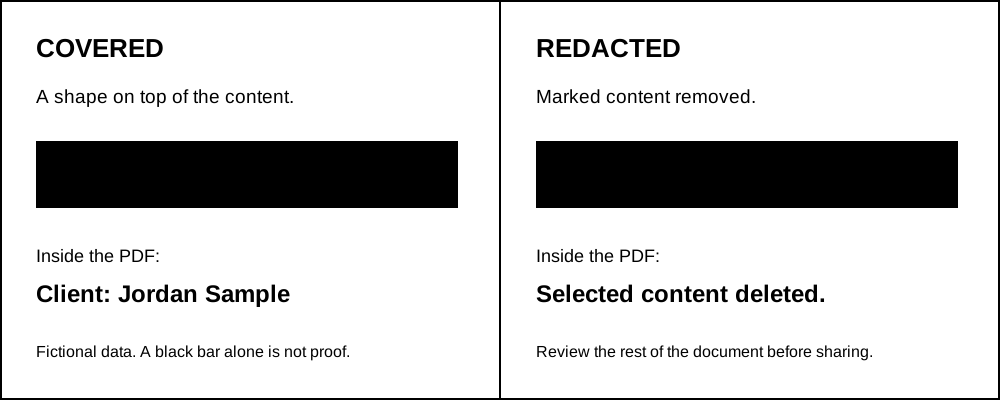
If someone can select the covered text, copy it into another document or remove the covering shape, the information was hidden from view but never removed. RedactGo rewrites supported content before drawing the black area.
Appearance alone cannot establish whether a PDF has been redacted. A shape placed over a bank account number may leave the original number inside the file. Use a tool that removes the underlying content and inspect the exported copy.
Search for the details you intended to remove, check every page and review unmarked annotations. A successful redaction removes the selected content; it does not automatically discover the same information elsewhere or guarantee that a document meets a particular disclosure rule.
Mark names, contact details, account numbers or paragraphs. Leave enough room around the full text you want removed and check the output.
Draw around a supported image or a signature drawn on the page. Some complex image encodings cannot be safely edited in part and will produce an error.
Mark whole page removes its visible content and leaves a black page in the same position. Page dimensions and document order remain unchanged.
Choose exactly what to remove before a document leaves your hands.
Remove client names, contact details and visible signatures before sharing a working copy.
Keep the information a colleague needs while removing personal identifiers and bank details.
Mark patient identifiers before sharing an excerpt. Review the whole document for repeated details.
Remove account numbers, addresses and other private details from invoices and statements.
Yes. RedactGo accepts PDFs up to 10 MB with no account, watermark or payment. There is no daily file quota.
A shape tool usually only covers the text. RedactGo removes marked content from supported PDFs when you apply redaction. If the engine cannot safely process a file, it shows an error instead of offering a misleading output.
Yes. Use Mark whole page, then Apply redaction. The exported document keeps the page in its original position and size, filled with black.
No. The tool runs in your browser and processes the document on your own device. You do not need a desktop application or an account.
Check that the content was removed, rather than covered. Review the exported PDF for repeated identifiers and other unmarked sensitive details before emailing it. A black bar alone is not proof that a file is ready to share.
Processed locally. Kept private.
For contracts, HR files, financial documents and the everyday things you need to share thoughtfully.
Redact your PDF ↗